Need to move coins from one linked employer account to another? Good news — Organisation Admins and Company Admins can easily manage and transfer coin credits directly within the FastJobs Employer Dashboard!
Step-by-Step Guide: How to Transfer Coins
- Log in to your Employer Dashboard and click on [Settings] in the top navigation bar.
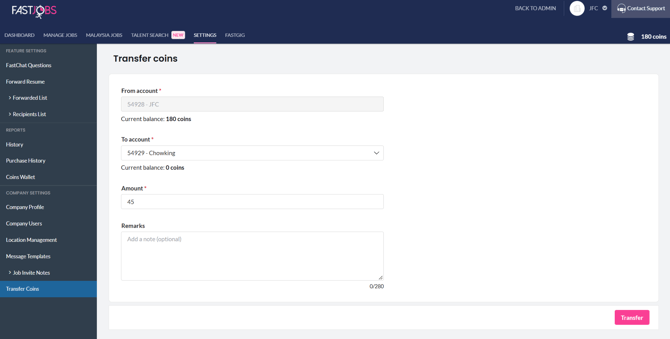
- On the left-hand menu, under Company Settings, select [Transfer Coins].
- Select the To account (recipient subaccount). The current balance for both accounts will display automatically.
- Enter the Amount of coins you wish to transfer (add optional remarks if needed).
- Click [Transfer] to complete the process.
How Coin Transfers Work with Lots
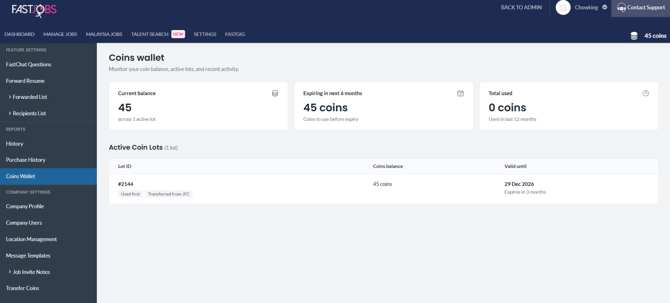
- Validity Follows the Origin: Transferred coins will appear as a new lot in the recipient account's Coins Wallet, carrying over the exact expiry date of the original lot.
Note: Carried-forward or reinstated expired coins will be valid for 3 months and must be used within this period. - Real-Time Balance Updates: The sending account's Coins Wallet will instantly update to reflect the new remaining balance and total coins transferred.
How to Track Transfer History
Want to check who initiated a coin transfer?
- Go to [Settings] in the top navigation bar.
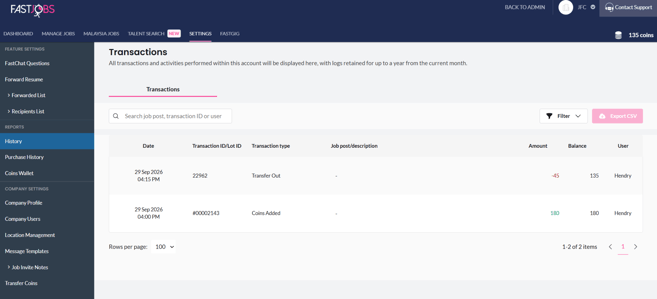
- Under Reports on the left-hand menu, click [History].
- View the Transactions log to see the date, Transaction ID, "Coins Transferred" activity, amount, and the user name who performed the action.
What's next?
Want to see when your transferred coins or active packages expire? Head over to [How do Coin Lots and the Coins Wallet work?] to check your active balances and validity dates.