-1.png?width=300&height=51&name=FastJobs%20FastGig%20Logo%20(1)-1.png)
Great news! You’ve received multiple applications from our giggers. Follow these step-by-step instructions to review and allocate the shift to the selected gigger(s).
- You may view each applicant's profile when you click on the 3 vertical dots. Here are the Key Gigger Indicators that would be helpful for your review:
-
- Employer ratings (stars)*
-
- Cancellation or no-show history
-
- Work experience rating → based on employers’ experience on FastGig (the more hours completed, the more credible)
-
- Repeat Gigger label → if they’ve worked with you before
-
- New Giggers → default employer rating of 4 stars until more experience is gained
- Found a gigger who fits the role? Click their shift and change the status to "Offer." This notifies the gigger, who must then confirm their availability before the status updates to "Confirmed".
- We suggest offering the shift to multiple giggers. For example, if you need one person, you could offer it to three. Once the first gigger confirms, the others automatically move to "KIV" (standby). If the confirmed gigger cancels, these standby giggers are notified to fill the vacancy.
- When you reach your required headcount and have giggers on "KIV" status for a specific shift, please select "Reject giggers" on the Schedule menu. Then, identify the shift with no remaining vacancies and reject any giggers still "In-Review." This proactive step allows giggers to better manage their schedules and experience the full flexibility of FastGig.
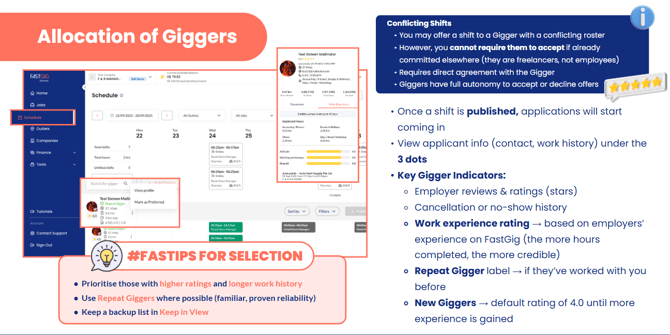
*Ratings calculated based on ratings given by employers on FastGig Business for the gigger’s past shifts. The ratings will reflect penalties dished out to the gigger for no shows and late cancellations.
Read more about the different rostering status meanings.